- Details
- Hits: 2109
The new menu layout is also using the four corners of the screen.
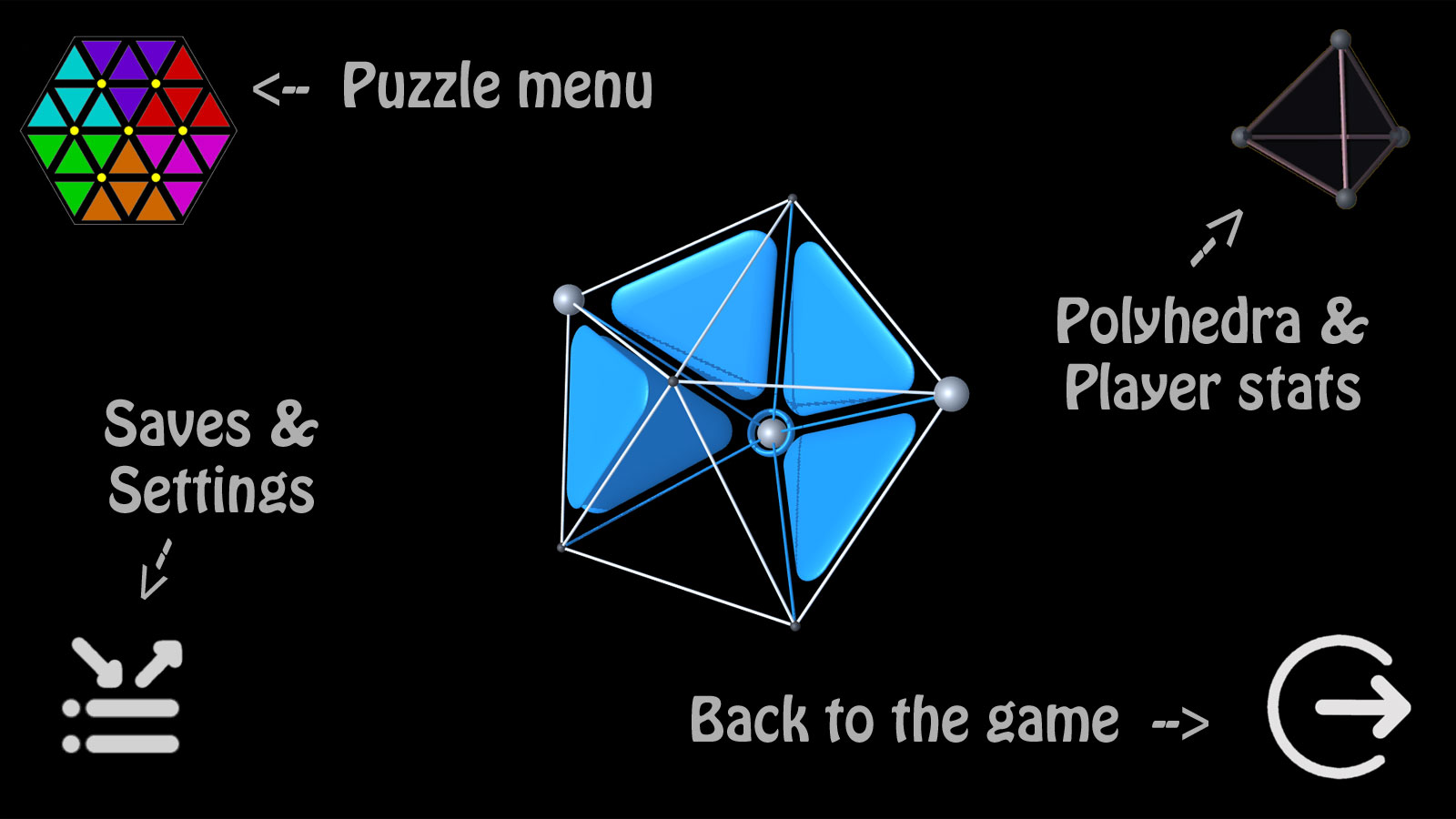
The Puzzle Submenu allows you to immediately see the chosen puzzle, and either keep it or choose another.
Likewise changes to settings can be seen and adjusted easier with the effect visually apparent.
- Details
- Hits: 2528
Gameplay in Trinagon has been designed around you !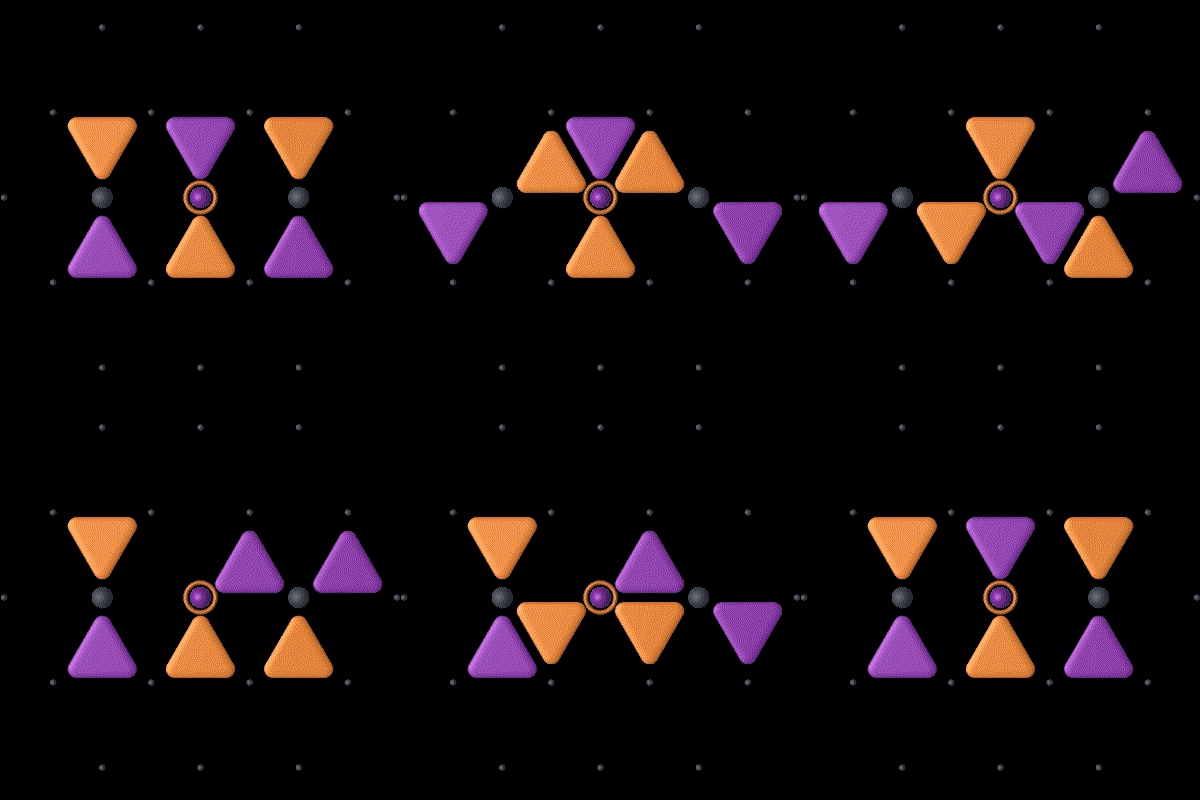
You can choose to play in a variety of ways, and you can tune these controls just right, so that you can focus on solving the puzzles.
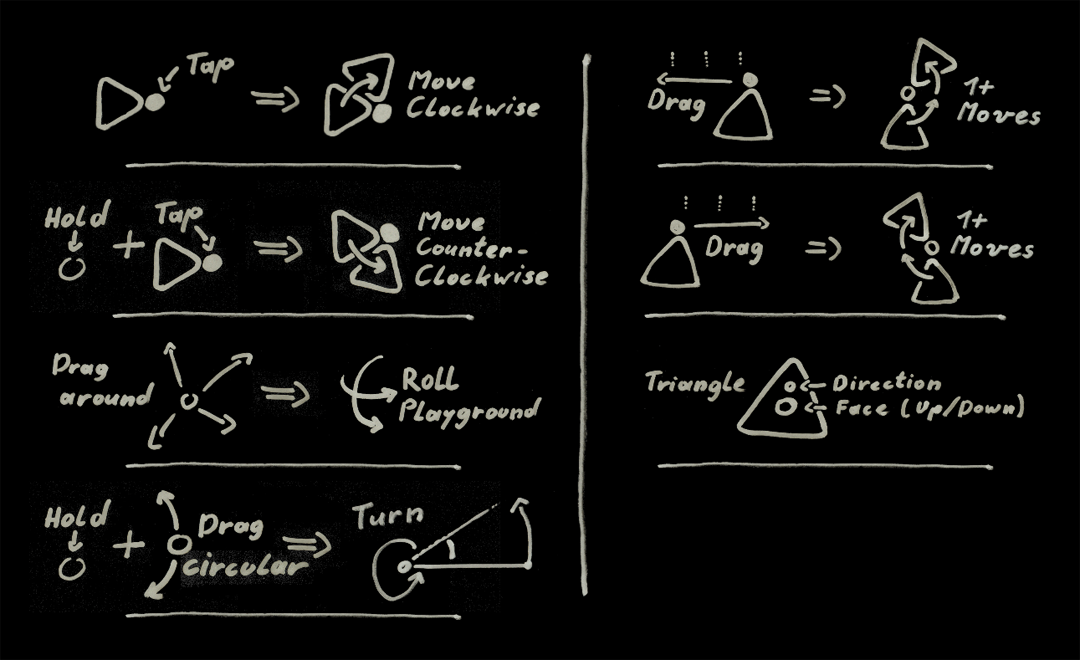
The Polyhedra all have rotators, which move all the triangles adjacent to them either clockwise or counterclockwise.
Clockwise turn :
- tap once on the rotator, or
- drag right from the rotator
Counter - clockwise turn :
- hold one finger somewhere els & tap on the rotator, or
- drag left from the rotator
- or : double tap on the rotator, if that option is turned on in the controls menu.
To change the orientation of the gameboard in space :
- Drag on the background will roll the gameboard, just like you would roll a tennis ball on the floor moving your hand over it.
- Hold somwhere and drag will turn the gameboard circularly around the center. (2 fingers)
- Tap once and then touch & drag will also turn the board, but you only need one finger.
To make the board smaller or bigger you can pinch-zoom in or out.
A remark about double tap play :
It is possible to use double taps for counter-clockwise moves, when that option is enabled in the controls menu.
This has a necessary side-effect : until a single tap can be executed, there will always be a small pause until the time for a possible double tap has passed.
Therefore this option is disabled by default. If you want to play leisurely, you may want to enable double-tap-moves.
The controls menu is in Menu -> Saves & Settings (lower left) -> gameplay tuning - controls.
The time the game uses to recognize a double tap can also be set in the controls-menu.
It will be used for double taps one the GameUI items as well. They are always enabled.
- Details
- Hits: 2171
Unlocking new puzzles :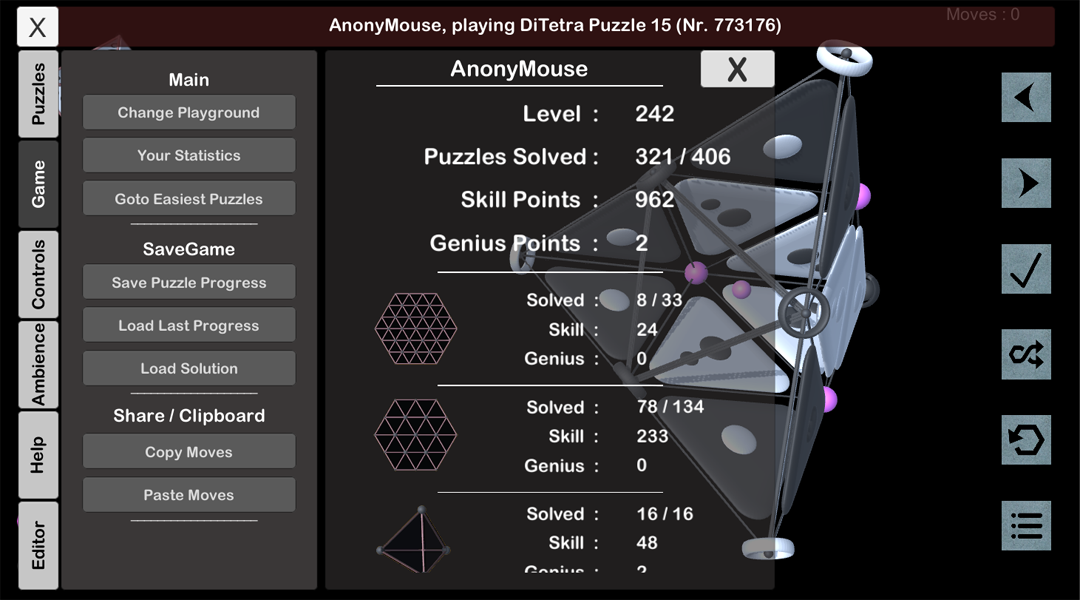
You earn points (triangles, obviously:) ) when solving puzzles, depending on how many moves it took you to solve them.
These points accumulate and unlock the harder puzzles, which ensures that you are ready to try them.
Trinagon can be rather difficult, and our aim is to avoid frustration, as well as reward ingenious solutions.
The point system should keep you below the level that you are ready for.
When a puzzle is made it has to be solved by its designer. How many moves he / she needed is stored and used for comparison.
You get
- 1 Skill point, if your solution needs less than 170% of the creators moves,
- 2 Sklii points, if you're below 126,7%
- 3 Skill points below around 111 %
- 1 Genius point for beating the creators solution,
- 2 Genius points, if your solution beats the creators by about a quarter.
Your skill level then is the skillpoints divided by 4, plus the genuis points.
You can play all puzzles up to your level, but only 5 further than the last one solved.
In the Game-Menu under 'Your Statistics' you can see how many puzzles of each polyhedron you have solved and how many points you earned there.
- Details
- Hits: 2376
There are three tutorials.
- Beginners Tutorial :
This is essential ! The first baby steps when you are new to trinagon. If you show the game to a friend, let them play this first.
Part 1 - Basic Moves & Playground Controls: Shown on the Octahedron. Basic moves clockwise and counterclockwise. Rolling & Turning the Playground in 3D.
Part 2 - Game Menu Controls : Here you'll learn the meaning & use of the Game UI.
There is indeed more : The tutorial is not exhaustive, but just enough to understand how to play the game. The added functionality is explained here in the online manual. - Spin Tutorial :
6 easy to medium difficult puzzles, all along the same principles with only 6 triangles to better see what each rotationtype is doing.
Finish / play at your leisure : You can just click through the puzzles to get to the rotation type you want to practice. - Mixed Spins - Turorial :
When mixing rotationtypes previously unforseen things start to happen. The shortcomings of one type can be remedied by another.
Read more abouit this in 'Triangle Groups'
The last two are part of any purchase.
- Details
- Hits: 3377
The user interface tries to stay out of the way and still give you all the options you need when solving your puzzles.
Have a look at the UI - cheatsheet :
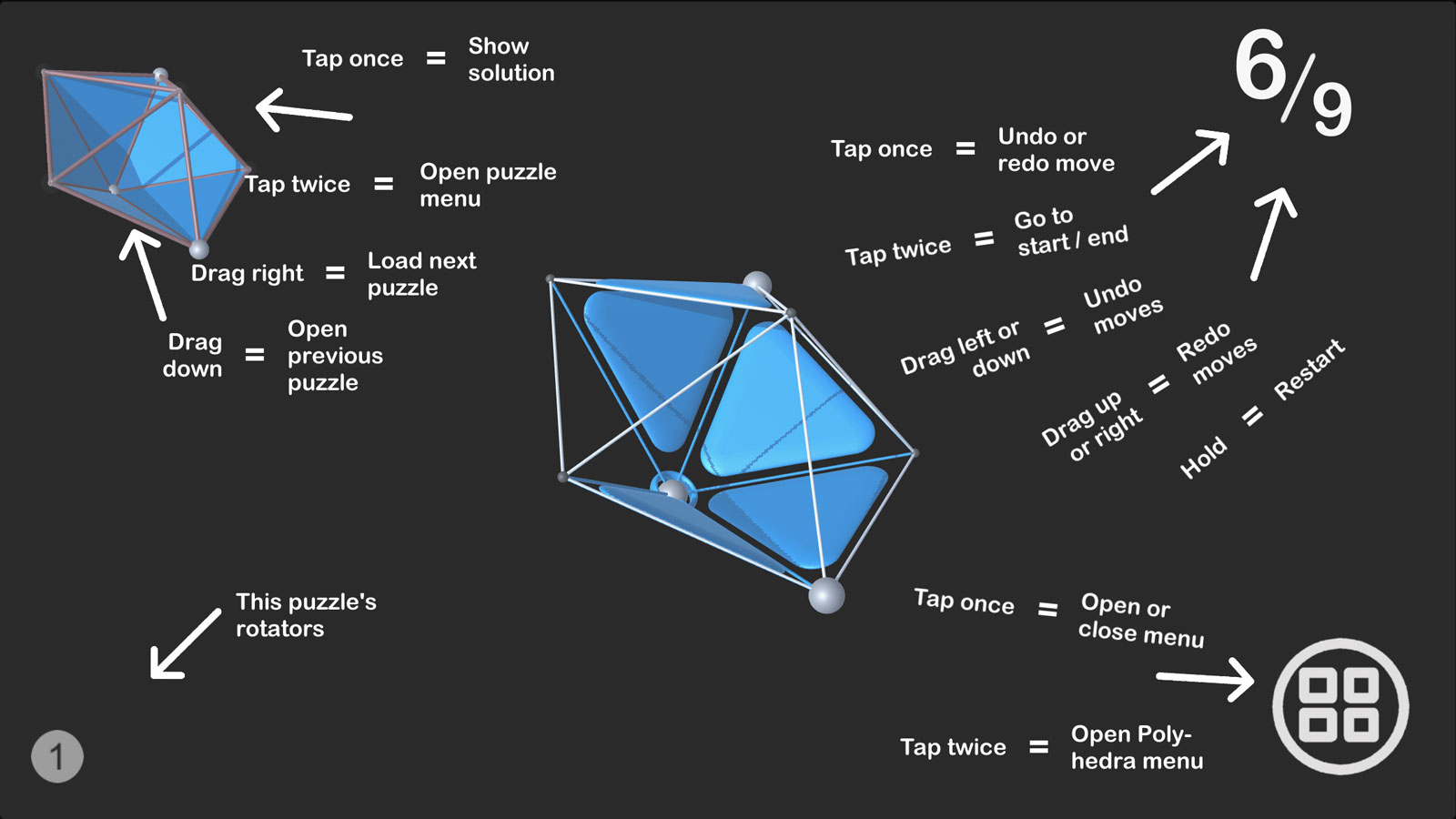
This cheatsheet is in the game ! Just go to the menu -> storage & setting -> UI Cheatsheet.
As you can see there is a lot of functionality in your touch gestures !
One is actually missing : touch&hold on the solution will open the puzzle menu, just like a double tap.
Also if you happen to tap the rotator number on the lower right, you'll get a bit of an insight into that rotation type.